Document management
Document management let you add and edit documents to ZynRg Client.
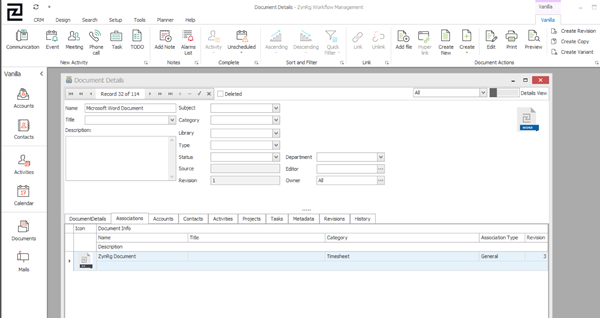
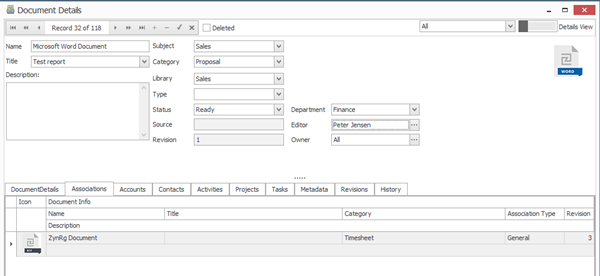
A document's page looks very much like the pages for accounts or contacts, but with the difference that you cannot click the words next to the fields and filter your documents accordingly.
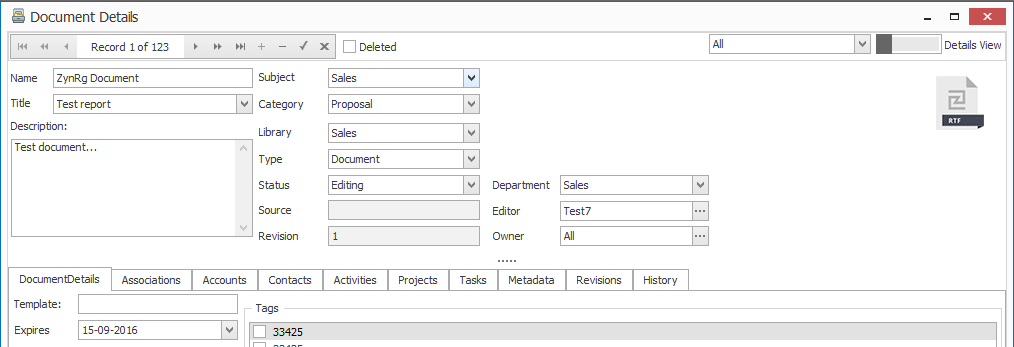
How to add a document
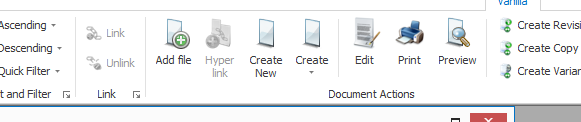
Adding a document is easy, you can either click the small + in the box with "record 1 of 123", or you press any of the document actions' buttons at the top of the window. The first button will let you import a file from your PC, while the two create buttons opens a document (of your choice if you press the second create button) for you to edit and save to ZynRg when you are ready. If you are not finished with a document you can press the edit button and continue working on it. The print button prints the document which page you are on, while preview let you view the document.
Library
Adding a library to a document let you see that document in that specific library when you are attaching a document to for example a mail. this keeps documents separated, and you wont see sales documents while looking for your newsletter to your subscribers. Read more about Library functions here.
PickLists
PickList can be found many places in ZynRg CRM, also in the documents manager. Many of the fields on a document's page has drop down buttons which let you choose a value from a preloaded PickList. These PickLists can be edited to fit your specific need be clicking the edit button and opening the PickList Editor. Read more here.
Editor and Owner
Editor let you setup who should be the one to be able to edit the document while owner let you choose who will be able to use the document, this can be a single user or a whole team such at your sales team. Those that are not a part of the team or is the user you choose as owner, will not be able to see the document. For more information about ownership click here. Editor can only be a single user and show who is responsible for editing the document. this can also be used when filtering documents according to the editor (how to set up a filter is explained here). Choosing an editor does not lock the document for getting edited by others, but as shown in the picture below under document tabs you can see that its possible to make the document "read only", for everyone.
Document tabs

These taps let you add or view additional information about documents:
- DocumentDetails - shows and let you setup: template, when the document expires as well as add tags to your document.
- Associations - let you view which other documents are related to the document that you are on.
- Accounts - gives an overview of the accounts connected to the specific document
- Contacts - shows the contacts that has the specific document connected to them.
- Activities - let you see which activities have the document assigned to it.
- Projects - lists the projects that the document is involved in, as well as a project description and the status of the project.
- Tasks - Here you can see tasks related to the document in question.
- Metadata - shows information such as when the document was created and by who as well as let you make the document "read only" and "protected".
- Revisions - Here you can see how many revisions the document has had as well as when and by whom.
- History - similar to the account and contacts management, document management has a history tap that lets you view a lot of customizable historical information about the document, read more here.