Account and Contact management
Create company, partners or customers accounts, manage easily and keep all the data at one place!

Accounts and Contacts are the base features of ZynRg CRM system. It ties together with many other features that you can also read about on our wiki site, such as Activities, that you can assign to specific accounts or mails, where you can access your contacts list with email addresses ready for you.
This is also a feature that keeps all your information sorted and structured, you can attach documents as well to each individual contact or account and easily access these from the account's or contact's page.
Account and Contact
ZynRg CRM is made to be user friendly, this is also the case with our Accounts and Contacts Management. Continue reading to see how this feature can help you optimize your work productivity and ease your workflow. If you have any questions, please go to our forum, here you can read questions already asked or ask a question of your own.
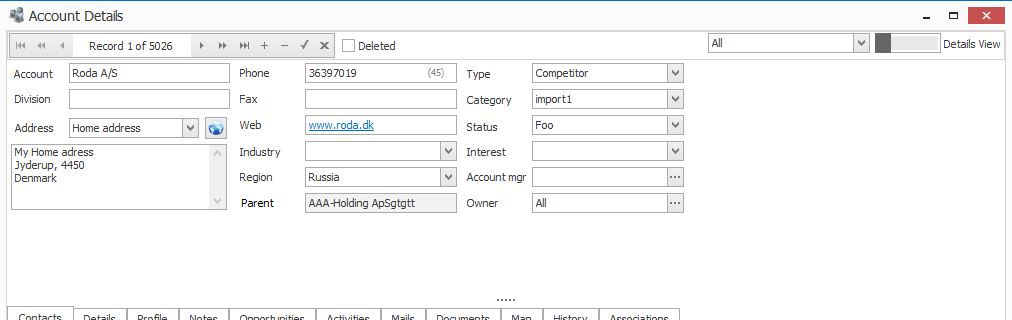
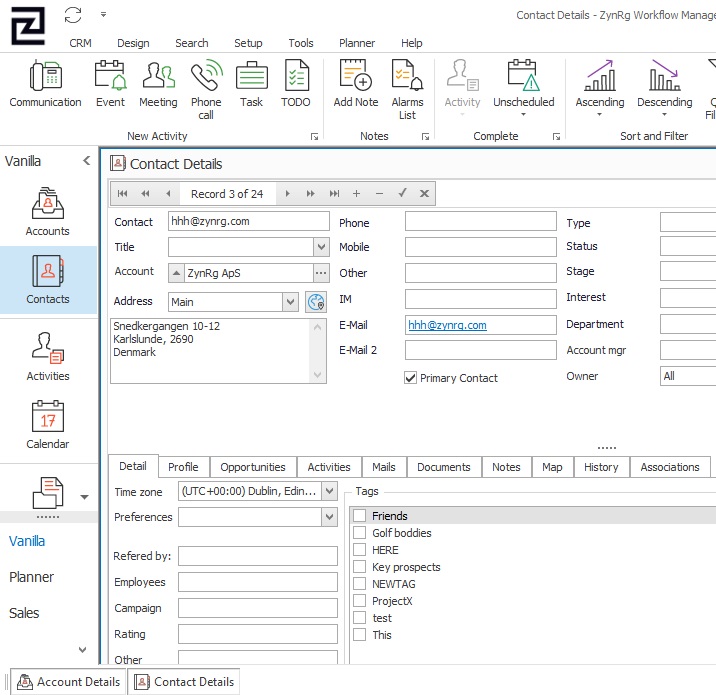
In the Contacts Manager you can search for and edit the Contacts you have already added to ZynRg Client, as well as add any new Contacts that you acquire.
How to find a specific account or Contact
By clicking any of the words: Account, Division, Phone, Industry, Status, Owner, etc. you will open a filter, sorting your accounts or contacts after the word you clicked. For example clicking Region will filter all your accounts according to what region they have filled in, likewise, clicking Department will filter your Contacts after their Department.
PickList Editor
Another feature in ZynRg is the PickList Editor, which is made to help you quickly and easily fill out forms and information regarding accounts, contacts, activities, users, mails, and much more. In the Accounts and contacts Managers the PickList Editor helps you set up what values you would like to fill out the various boxes with, just press the down button next to the boxes and press edit to add and adjust the values. Read more about the PickList Editor.
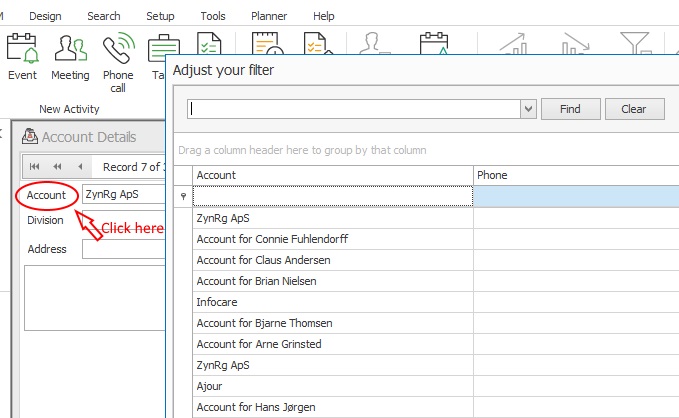
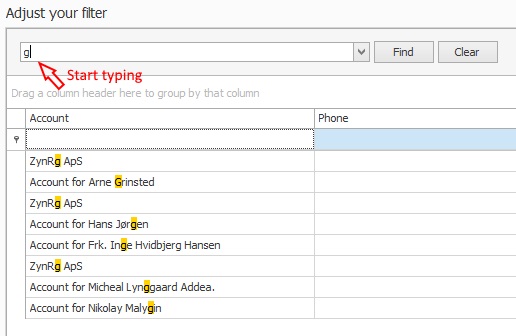
All changes made in the PickLists get saved to the history, this way you can always see when an account went from being an opportunity to a real customer, etc. More about history here.
Adding an Address
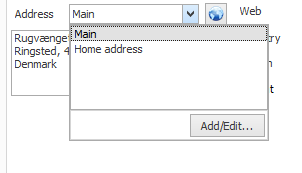
To add an address you simply either click the address field or the drop-down button next to it, this will open the list of dresses that you have for this account or contact, and you can then choose which you would like to see, main or headquarters or even home address.
By clicking the add/edit button you will be able to see more information about each address, such as whether they are the primary address for the account or a shipping account or neither. To edit or delete an address you simply choose an address and press the appropriate button. You add an address by clicking the add button.
Assigning Account Managers and Owners
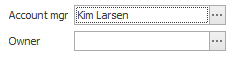
By pressing glyph you will either open the "Select User" or the "Owner Assignment" window. Here you can set up the user managing the account or contact, taking care of sales for example, this can be used used in ZynRg's Sales' Pipeline as a way to see how each manager performs. To read more about Sales Pipeline click here.
Assigning an Owner determines who has access to that specific account, this can be a specific user, a group or a whole system. By assigning a group that you yourself is not a member of you will loose access to that account, but if the team or user assigned is below you in the company hierarchy you will still be able to see the account. Read more about Team and hierarchy controlled ownership here.
Contact and Account Tabs
In common for both contact and accounts is the tabs at the lower part of their window where you can browse for more information regarding each contact or account.
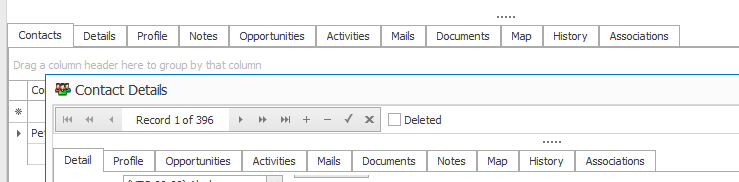
These taps can be dragged up or down to fill as much or little of the window as you wish.
The only difference between the two is that Accounts has the tab "Contacts" where you can see each contact related to the specific account. You can also see the account related to the contact in the Contact Details window, but its is in a field on its own, not as a tab, more about that later.
- Details - has a wide range of details regarding the account or contact for you to see and fill out, such as: Timezone, lead source, number of employees, revenue, company type, reg no, Account ID, do not solicit, and lastly Tags. For more information about how tags can help you best possible, click here.
- Profile - let you see who created the account or contact as well as when. Also when the next activity will be and who will do it is shown here, together with when the last activity was. Even when the contact or account was last edited and by whom is here.
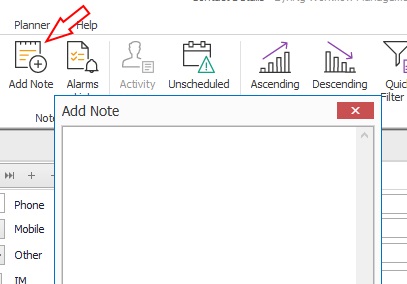
- Notes - which is where you can write free text regarding the specific account that you are on, the text that you write here will still be there when you open the account next time. There is also another kind of notes that you can open and start writing by clicking the notes icon at the top of the vanilla window, these notes get saved under the history tap.
- Activities - here you can see the activities that have been assigned the account, such as having to call their primary contact for a follow-up or a meeting coming up. Read more about activities here.
- Opportunities - lets you make an opportunity showing what, how much, when and what percentage of certainty that you can obtain it. Works well together with the ZynRg Sales module. For more information about opportunities, click here.
- Mails - here you can see the mails that have been sent back and forth between your company's employees and the account or contact.
- Documents - Shows you all documents regarding the specific account or contact. More information here.
- Map - shows the location of the address you have open on the account in Google Maps, at the moment you press the little globe button next to the address field. Read more about Map here.
- History - here you can see all the activities that has happened with this account, all changes, mails, notes etc.. More information here.
- Associations - gives you an overview of the relations between accounts and contacts. Read more here.
Specific to Contacts
Account
Will let you set up which of the account you have already added to ZynRg Client is the one that this specific contact belongs to. By clicking the up arrow button you will go directly to that account's page.
Primary Contacts

The last thing that makes the Contact window differ from the account window is the box " Primary contact" that Can be ticked if you wish this contact to be the primary contact for the account that you have setup.
In the accounts Manager you can search for and edit the accounts you have already added to ZynRg Client, as well as add any new accounts that you acquire.